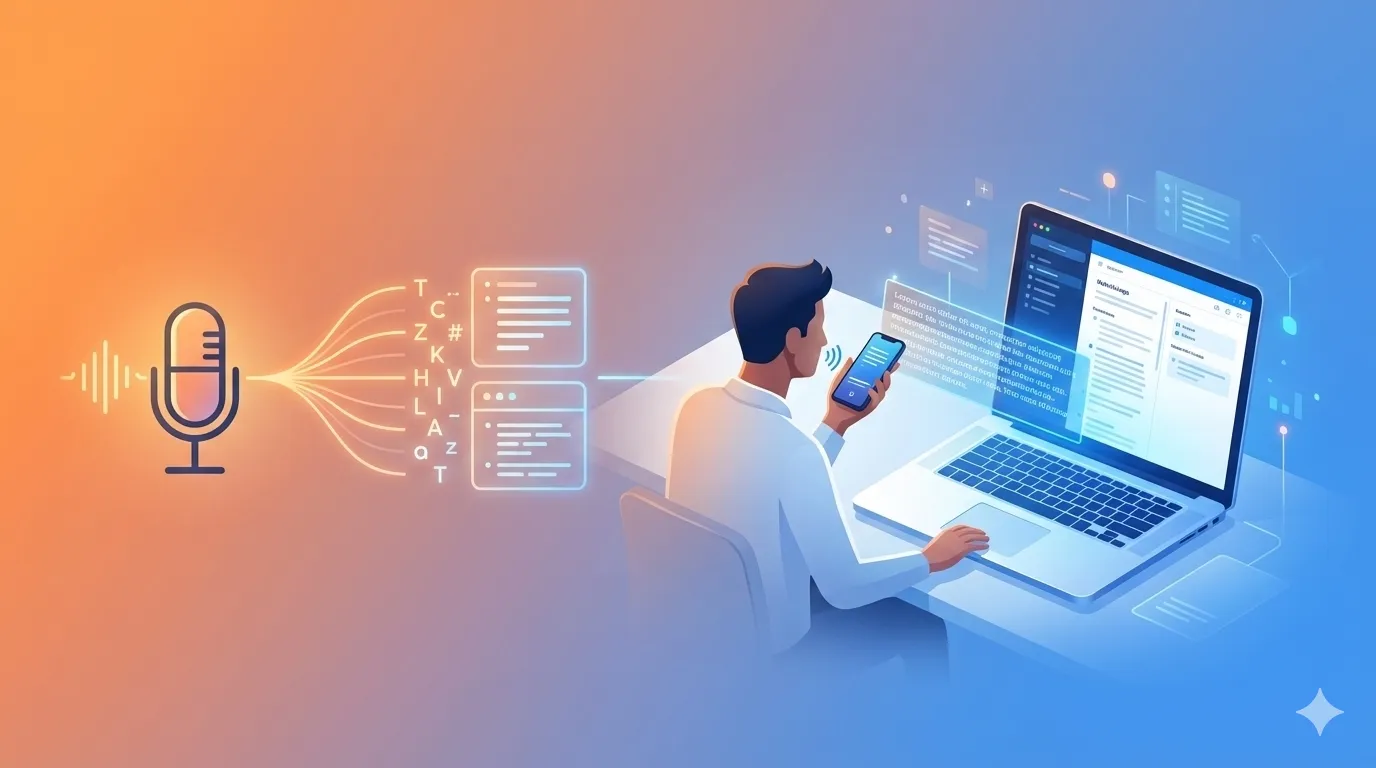
Your meeting just ended. In 2 minutes, you have action items ready.
You walk out of a 1-hour product review meeting. Your head is full of decisions, action items, follow-ups. The old you would open a notes app, try to remember everything, type it out, format it, send it around.
The new you pulls out your phone, hits record, and talks for 90 seconds:
"Product review meeting just ended. Key decisions: we're going with option B for the pricing model, launch date moved to March 15th. Action items for me: update the forecast spreadsheet by Friday, schedule follow-up with finance team. Thomas owns the technical spec, due next Wednesday. Open question: do we need legal review for the new terms?"
You put your phone away. By the time you reach your desk, your laptop has:
- Transcribed the audio
- Extracted structured action items
- Identified owners and deadlines
- Flagged the open question
- Formatted everything into a shareable summary
No typing. No formatting. Just speak and done.
This is voice-first workflow. Let's build it.
The Components
A voice-first workflow has three parts:
┌──────────────┐    ┌──────────────┐    ┌──────────────┐
│    Voice     │ →  │ Transcription│ →  │  Processing  │
│   Recording  │    │   (Whisper)  │    │   (Claude)   │
└──────────────┘    └──────────────┘    └──────────────┘
Phone/Mic Local/Cloud Claude Code- Voice Recording - Capture audio (phone, laptop mic, dedicated recorder)
- Transcription - Convert speech to text (Whisper models)
- Processing - Extract meaning, structure, action items (Claude)
Each component has multiple options. You can go fully local (privacy-first) or use cloud services (convenience-first). Let's explore both.
Already Using Microsoft Teams + Copilot?
Skip the transcription setup. If your organization uses Microsoft Teams with Copilot, you already have automatic meeting transcription built in.
Teams + Copilot provides:
- Real-time subtitles during meetings
- Full meeting transcripts saved automatically
- AI-generated meeting summaries
- Action items extraction
Your workflow becomes simpler:
- After meeting ends, open Teams chat for that meeting
- Click on "Recap" or find the transcript
- Copy the transcript or summary
- Paste into Claude Code:
/process_meetingwith the transcript
Or create a dedicated command ~/.claude/commands/process_teams_transcript.md:
# Process Teams Transcript

Process the following Teams meeting transcript and extract:
- Key decisions made
- Action items with owners
- Open questions
- Follow-up needed

Transcript:
$ARGUMENTS
Bottom line: If Teams + Copilot handles your transcription, skip Options 1-3 below and jump straight to "The Complete Pipeline" section. Use Claude Code for the processing and structuring part only.
Option 1: SuperWhisper (Mac - Recommended)
SuperWhisper is the easiest way to add voice input on Mac. It's a menu bar app that transcribes your speech in real-time.
Installation
Download from superwhisper.com or:
brew install --cask superwhisperSetup
- Open SuperWhisper
- Choose a Whisper model:
- Tiny (75MB) - Fast, good for quick notes
- Base (142MB) - Better accuracy
- Small (466MB) - Best balance
- Medium (1.5GB) - High accuracy
- Large (2.9GB) - Maximum accuracy
- Set your hotkey (default:
Cmd+Shift+;) - Choose output mode: "Paste to active app"
Using with Claude Code
- Open Claude Code in terminal
- Press your SuperWhisper hotkey
- Speak your request
- SuperWhisper transcribes and pastes into Claude Code
- Claude processes your request
Example workflow:
You press hotkey and say:
"Summarize the key points from today's standup: backend team is blocked on the API changes, frontend is ahead of schedule, we need to decide on the testing framework by end of week."
SuperWhisper transcribes it directly into Claude Code. Claude responds with a formatted summary.
Pro Tip: Whisper Mode
SuperWhisper has a "Whisper Mode" that activates when you hold the hotkey. Release to stop recording and transcribe. Perfect for quick voice commands.
Option 2: Ollama + Whisper (Fully Local)
For maximum privacy - nothing leaves your machine. We'll use Ollama to run Whisper locally.
Install Ollama
# Mac
brew install ollama

# Linux
curl -fsSL https://ollama.com/install.sh | sh

# Start Ollama service
ollama serve
Download Whisper Model
Ollama doesn't have Whisper directly, but you can use whisper.cpp for local transcription:
# Clone whisper.cpp
git clone https://github.com/ggerganov/whisper.cpp
cd whisper.cpp

# Build
make

# Download model (small is good balance)
./models/download-ggml-model.sh small
Create Transcription Script
Save as ~/bin/transcribe.sh:
#!/bin/bash
# Transcribe audio file using local Whisper

WHISPER_PATH="$HOME/whisper.cpp"
MODEL="$WHISPER_PATH/models/ggml-small.bin"
INPUT_FILE="$1"
OUTPUT_FILE="${INPUT_FILE%.*}.txt"

# Transcribe
$WHISPER_PATH/main -m $MODEL -f "$INPUT_FILE" -otxt

# Output to stdout
cat "$OUTPUT_FILE"
Make it executable:
chmod +x ~/bin/transcribe.shUsage
# Record audio (Mac)
# Press Ctrl+C to stop
rec meeting_notes.wav

# Transcribe
~/bin/transcribe.sh meeting_notes.wav
Claude Code Integration
Create a custom command ~/.claude/commands/transcribe.md:
# Transcribe Command

Transcribe the audio file: $ARGUMENTS

Steps:
1. Run: ~/bin/transcribe.sh [filename]
2. Read the resulting .txt file
3. Present the transcription
4. Ask what I want to do with it:
   - Extract action items
   - Summarize key points
   - Format as meeting notes
   - Send to someone
Use: /transcribe ~/recordings/meeting.wav
Option 3: Cloud APIs (Fastest)
If privacy isn't a concern, cloud APIs are faster and more accurate.
OpenAI Whisper API
# Transcribe audio file
curl https://api.openai.com/v1/audio/transcriptions \
  -H "Authorization: Bearer $OPENAI_API_KEY" \
  -H "Content-Type: multipart/form-data" \
  -F file="@meeting.mp3" \
  -F model="whisper-1" \
  -F response_format="text"
Claude Code Command for Cloud Transcription
Create ~/.claude/commands/transcribe_cloud.md:
# Cloud Transcribe Command

Transcribe audio using OpenAI Whisper API: $ARGUMENTS

Steps:
1. Read the audio file path from arguments
2. Call OpenAI Whisper API:
   - Endpoint: /v1/audio/transcriptions
   - Model: whisper-1
   - API key from $OPENAI_API_KEY
3. Return the transcription
4. Ask what to do next
The Complete Pipeline: Meeting → Action Items
Here's the full workflow that takes you from meeting end to action items in 2 minutes.
Step 1: Record on Phone
Use any voice memo app:
- iPhone: Voice Memos (built-in)
- Android: Easy Voice Recorder
- Cross-platform: Otter.ai (has its own transcription)
Record immediately after the meeting while context is fresh.
Step 2: Sync to Laptop
Options for getting audio to your laptop:
| Method | How | Speed |
|---|---|---|
| AirDrop | iPhone → Mac directly | Instant |
| iCloud | Auto-sync Voice Memos | ~1 min |
| Dropbox | Save to shared folder | ~1 min |
| Send to yourself | ~30 sec | |
| USB | Manual transfer | Slow |
Recommended: Set up a dedicated folder that auto-syncs:
~/Dropbox/VoiceNotes/~/iCloud/VoiceMemos/
Step 3: Auto-Process with Claude Code
Create ~/.claude/commands/process_meeting.md:
# Process Meeting Notes Command

Process voice recording and extract structured meeting notes.

## Input
Audio file: $ARGUMENTS (or latest file in ~/VoiceNotes/)

## Steps

### 1. Transcribe
- If audio file provided, transcribe it
- Use local Whisper or OpenAI API based on file size
- Small files (<5MB): local
- Large files: cloud API

### 2. Extract Structure
From the transcription, identify:

**Decisions Made:**
- List each decision with context

**Action Items:**
- Task description
- Owner (if mentioned)
- Deadline (if mentioned)
- Priority (infer from context)

**Discussion Points:**
- Key topics discussed
- Different viewpoints mentioned

**Open Questions:**
- Unresolved items
- Items needing follow-up

**Attendees:**
- People mentioned by name

### 3. Format Output

📋 MEETING SUMMARY
Date: [today]
Duration: [estimated from audio length]

## Decisions
- [Decision 1]
- [Decision 2]

## Action Items
| Task | Owner | Due | Priority |
|------|-------|-----|----------|
| [task] | [name] | [date] | [P1/P2/P3] |

## Key Discussion Points
- [Point 1]
- [Point 2]

## Open Questions
- [ ] [Question 1]
- [ ] [Question 2]

## Raw Transcript
<collapsed>
[full transcription]
</collapsed>

### 4. Offer Next Steps
Ask if I want to:
- Save as markdown file
- Create Jira tickets for action items
- Draft follow-up email to attendees
- Add to my todo list
Step 4: One-Command Execution
After your meeting:
> /process_meeting ~/VoiceNotes/product_review.m4aOutput in 30-60 seconds:
📋 MEETING SUMMARY
Date: January 2, 2026
Duration: ~45 minutes

## Decisions
- Going with Option B for pricing model
- Launch date moved to March 15th
- Using Jest for testing framework

## Action Items
| Task | Owner | Due | Priority |
|------|-------|-----|----------|
| Update forecast spreadsheet | Me | Friday | P1 |
| Schedule finance follow-up | Me | This week | P2 |
| Technical spec document | Thomas | Next Wed | P1 |

## Open Questions
- [ ] Do we need legal review for new terms?

Want me to:
1. Save as markdown file?
2. Create Jira tickets for action items?
3. Draft follow-up email?
Mobile-First Variation
Don't want to transfer files? Use a cloud-connected workflow.
Setup: Shortcuts + Cloud Function
On iPhone, create a Shortcut:
- Trigger: "Hey Siri, process meeting"
- Action 1: Record audio (30 sec - 5 min)
- Action 2: Upload to Dropbox/iCloud
- Action 3: Call webhook (triggers processing)
On your laptop, a watcher script detects new files:
#!/bin/bash
# watch_meetings.sh - Run in background

WATCH_DIR="$HOME/Dropbox/VoiceNotes"
PROCESSED_DIR="$HOME/Dropbox/VoiceNotes/processed"

fswatch -0 "$WATCH_DIR" | while read -d "" file; do
  if [[ "$file" == *.m4a ]] || [[ "$file" == *.mp3 ]]; then
    echo "New recording: $file"

    # Process with Claude Code
    claude --command "process_meeting $file"

    # Move to processed folder
    mv "$file" "$PROCESSED_DIR/"
  fi
done
Now recordings are processed automatically. You speak into your phone, and by the time you check your laptop, meeting notes are ready.
Privacy Considerations
| Approach | Data Location | Best For |
|---|---|---|
| SuperWhisper (local model) | Your machine only | Daily use, sensitive content |
| Ollama + whisper.cpp | Your machine only | Maximum control |
| OpenAI Whisper API | OpenAI servers | Large files, best accuracy |
| Otter.ai | Otter servers | Automatic meeting recording |
For sensitive meetings (HR, legal, financials): Use local transcription only.
For general meetings: Cloud APIs are fine if your company allows.
Enterprise: Many companies have approved AI vendors. Check with IT.
Troubleshooting
Transcription quality poor?
- Use larger Whisper model
- Improve audio quality (closer mic, less background noise)
- Speak clearly and at moderate pace
Processing too slow?
- Use cloud API for large files
- Split long recordings into chunks
- Use smaller local model for first pass
Sync not working?
- Check cloud service is running
- Verify folder permissions
- Test with manual file copy first
Claude not understanding context?
- Provide more context in your voice note
- Mention names, dates, and projects explicitly
- Use the command arguments to specify meeting type
Quick Reference
┌─────────────────────────────────────────────────────┐
│           VOICE WORKFLOW QUICK START                │
├─────────────────────────────────────────────────────┤
│ SuperWhisper:  brew install --cask superwhisper     │
│ Ollama:        brew install ollama                  │
│ Record:        Voice Memos app → AirDrop to Mac     │
│ Process:       /process_meeting [file]              │
├─────────────────────────────────────────────────────┤
│ TIP: Record immediately after meeting while        │
│ context is fresh. 90 seconds of voice = 15 min     │
│ of typing.                                          │
└─────────────────────────────────────────────────────┘
What's Next
In Part 4, we'll tackle Skills - teaching Claude your rules so you never have to repeat yourself.
- Company coding standards that apply to every code review
- Your writing style for all drafted emails
- GDPR and AI Act compliance checks
- Team review checklists
Once set up, Claude remembers these rules forever. Every response follows your standards automatically.
Previous: Custom Commands | Next: Skills - Embed Your Rules
About this series: Part 3 of 5 in the Claude Code Series. Written for managers, product owners, data leads, and anyone who works smart.